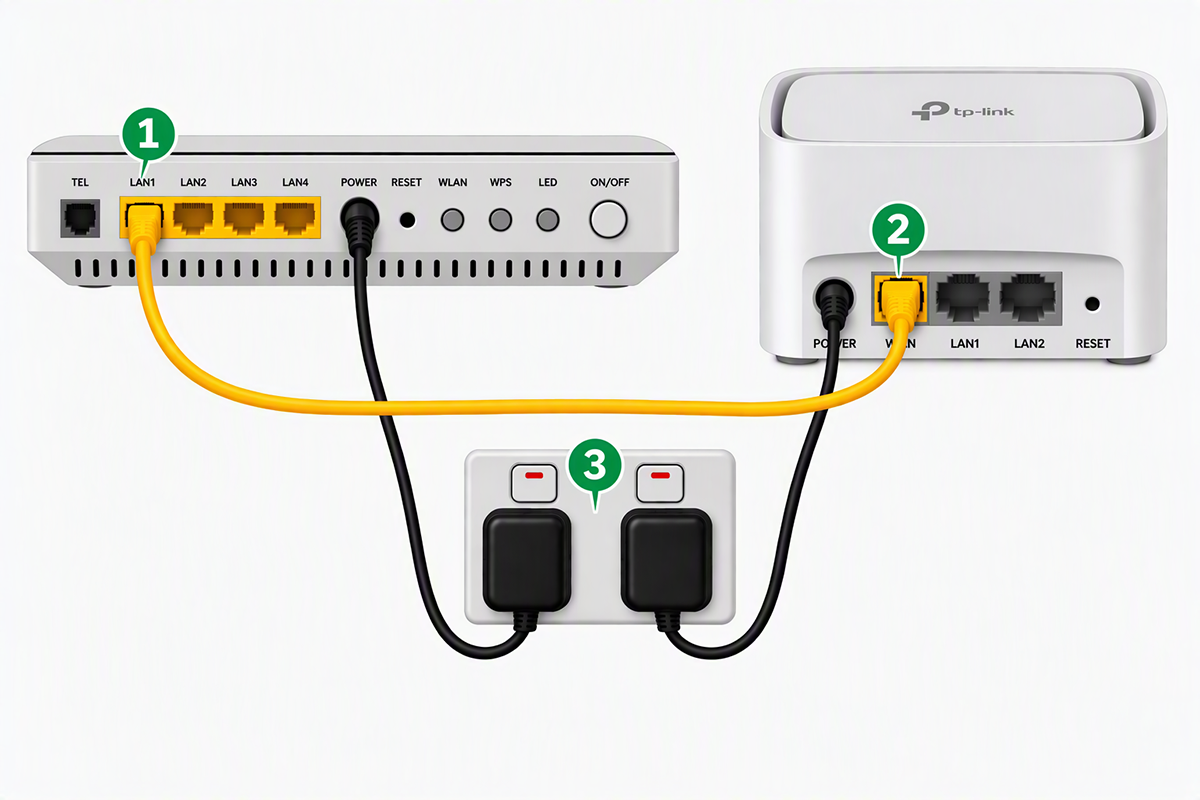
TP Link HX510 for fibre connections
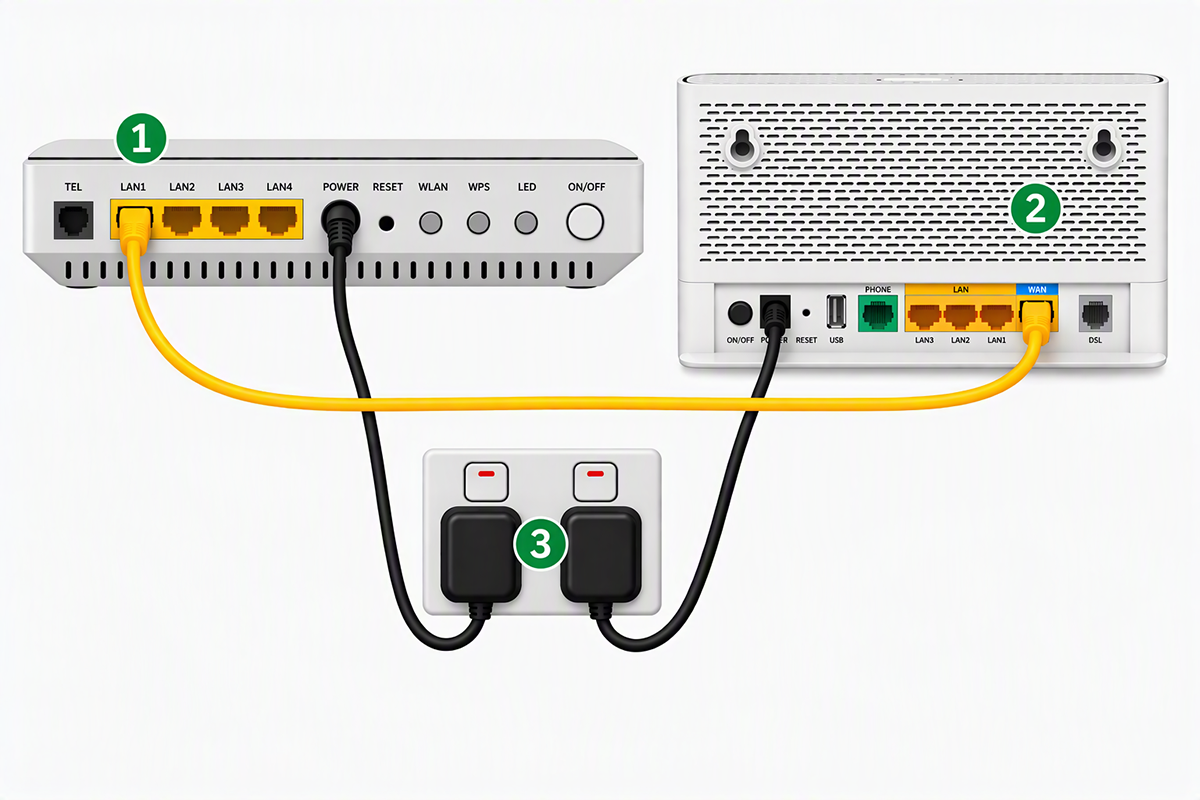
 TP-Link VX230v for fibre connections
Picture descriptions
The top picture is a TP-Link HX510. The bottom picture is a TP-Link VX230v.
- ONT/Optical Network Terminal/Fibre box: Connects your modem to the Chorus fibre network and is usually on your wall. Connect an ethernet cable from LAN 1 on you ONT to the WAN port on your modem.
- Your modem: Connects your home to the internet.
- Power socket in your home: Ensure both the modem and ONT have a power cable that is plugged in and switched on.
Wiring information
- Connect the power: plug the power adapter into the back of your modem, then connect it to a power socket near your ONT (the white fibre box). Your ONT is usually mounted on a wall somewhere in your home
- Turn on the modem: plug the supplied power adapter into the modem's Power port and switch it on at the wall socket. Press the modem's Power On/Off button if required
Your modem may take a few minutes to start up and connect to our network.
During this time, the status lights will flash as the modem establishes a connection. When the light on the modem changes to a continuous white light your modem is set up.
TP-Link Deco X55 for fibre connections
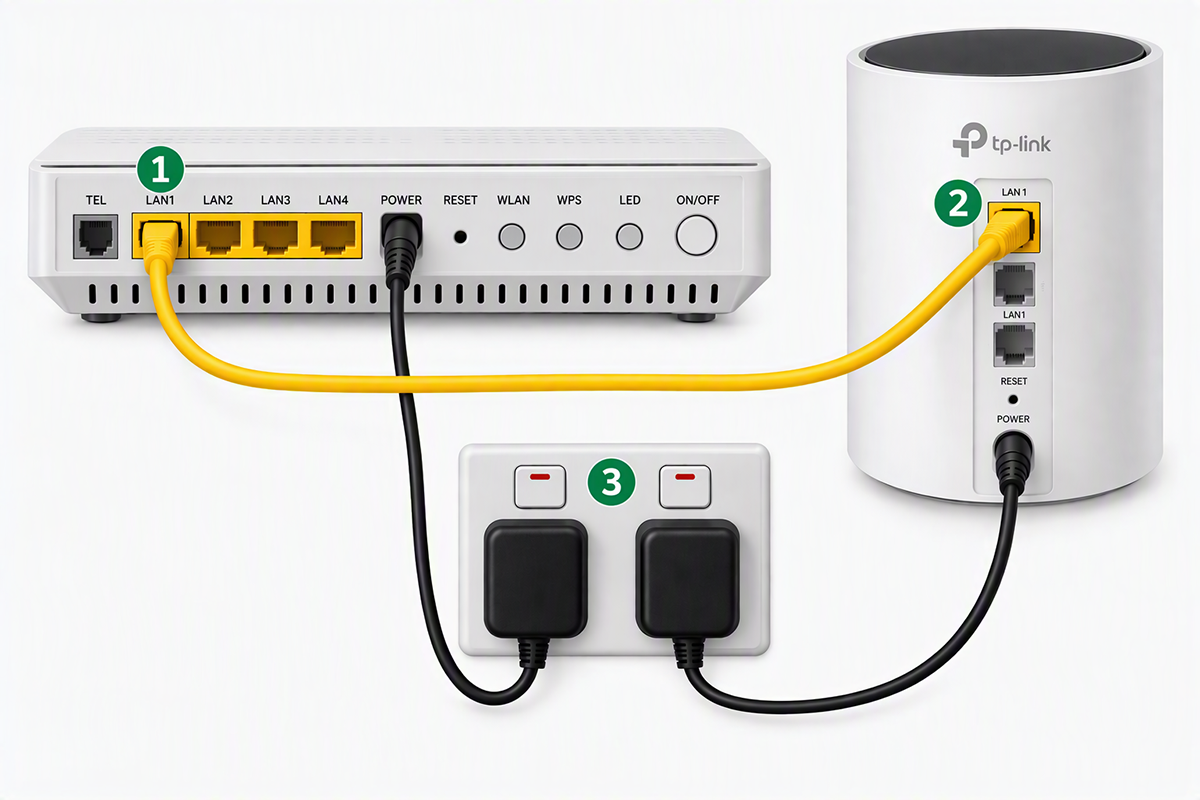
Picture descriptions
- ONT/Optical Network Terminal/Fibre box: Connects your modem to the Chorus fibre network and is usually on your wall. Connect an ethernet cable from LAN 1 on you ONT to the LAN 1 port on your modem
- Your modem: Connects your home to the internet
- Power socket in your home: Ensure both the modem and ONT have a power cable that is plugged in and switched on
Never press the reset button on the bottom of this modem, unless directly advised by Contact.
For the setup of your TP-Link Deco X55 please see the instructions here.
If you are still having issues after following the above trouble shooting, open or download the TP Link Deco app from the App/Play store.
Follow the instructions below to check/adjust your modems settings:
- Login to your TP Link account
- Ensure your phone/tablet is connected to your Deco over the Wi-Fi
- Tap "More" (bottom right)
- Select Advanced
- Select IPTV/VLAN
- Tick Enable
- Ensure ISP profile is set to NZ UFB and save
Home Phone Setup (TP-Link VX230v Only)
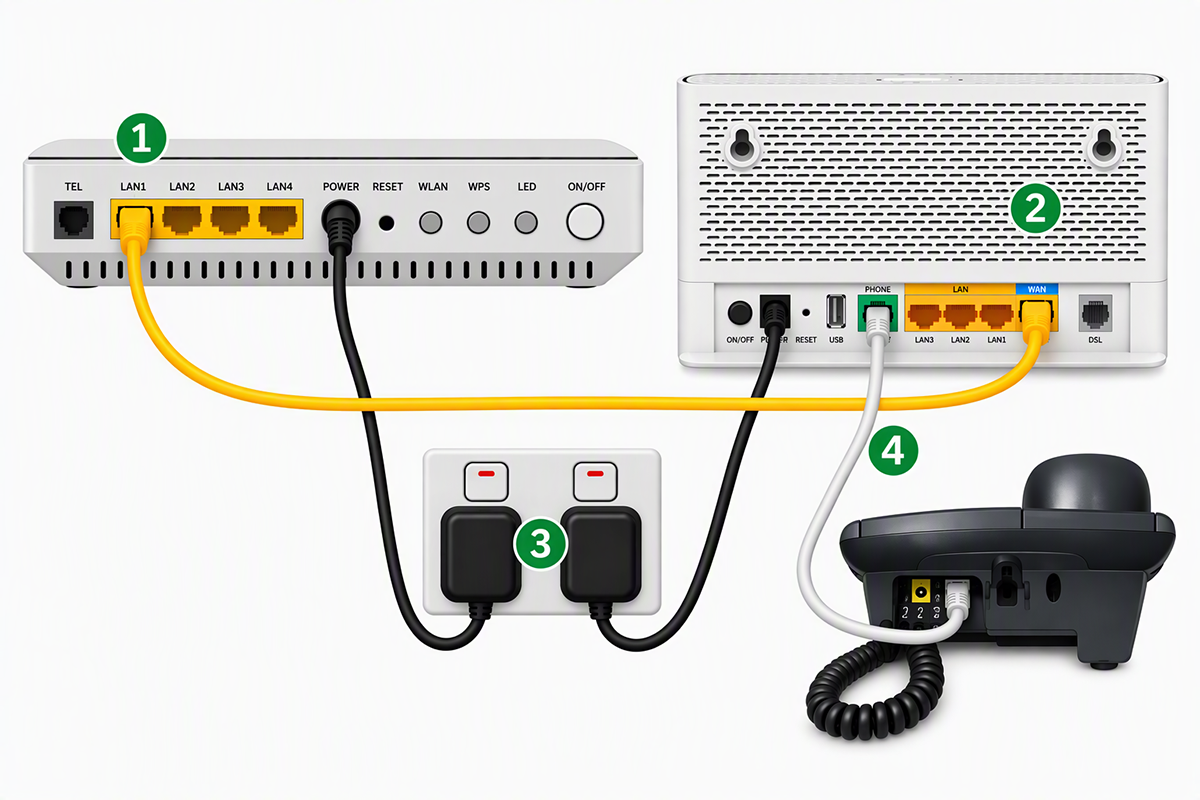
Picture descriptions
- ONT/Optical Network Terminal/Fibre box: Connects your modem to the Chorus fibre network and is usually on your wall. Connect an ethernet cable from LAN 1 on you ONT to the WAN port on your modem
- Your modem: Connects your home to the internet
- Power socket in your home: Ensure both the modem and ONT have a power cable that is plugged in and switched on
- Home phone: Plug a telephone cable from the phone port on your phone to the phone port on your modem
This feature is only available if you've included a Home Phone Line as part of your Contact broadband package.
Once your modem is connected to the internet, plug your phone handset's cable into the GREEN Phone port on the back of the TP-Link VX230v modem.
Your home phone service should be ready to use within a few minutes, if it does not come online please call us 0800 641 502.